Two-Factor Authentication (2FA)
Why 2FA Matters
Your password is the first line of defence for your account, but it shouldn't be the only one. Two-Factor Authentication (2FA) adds a second layer of security to ensure that only you can access your account, even if your password is stolen or compromised.
Instead of relying only on "something you know" (your password), 2FA requires "something you have" (a mobile device or security key). When you log in, you will be prompted for:
- Your password — Your standard login credential.
- A verification step — Prove your identity using a secondary method via a physical device or a private access point.
Why we use it:
- Prevent account takeovers — Even if a malicious actor discovers your password through a data breach or phishing, they cannot enter your account without the physical device that generates your 2FA codes.
- Protect company data — As a business platform, we handle sensitive information. 2FA is the most effective way to prevent unauthorised access and protect your team's collective data.
- Compliance & Trust — Many industry standards (like SOC2 or GDPR) require 2FA to ensure high levels of data privacy and security.
Choosing Your Method
You can choose the method that best fits your workflow. While we currently support two options, we highly recommend the Authenticator App for the highest level of security.
Option 1: Authenticator App (Recommended)
This is the most secure and reliable method. Install an app such as Google Authenticator, Microsoft Authenticator, or Authy on your smartphone to generate unique, time-sensitive codes.
- Pros: Works offline, highly resistant to interception, and keeps work and personal communications separate.
- Best for: Users who want the strongest account protection.
Option 2: Email Verification (One-Time Password)
When you log in, we send a unique 6-digit code directly to your registered work email address.
- Pros: No additional app required; easy to access from any device where you can check your mail.
- Best for: Users who may not always have their mobile device handy or prefer not to use a smartphone for work authentication.
Setting Up 2FA
There are two ways you might be prompted to set up 2FA. Whether you are doing it voluntarily or because your company requires it, the process is quick and secure.
Mandatory Setup (During Login)
If your Merchant Admin has enforced 2FA for your entire organisation, you will be automatically guided through the setup the next time you log in.
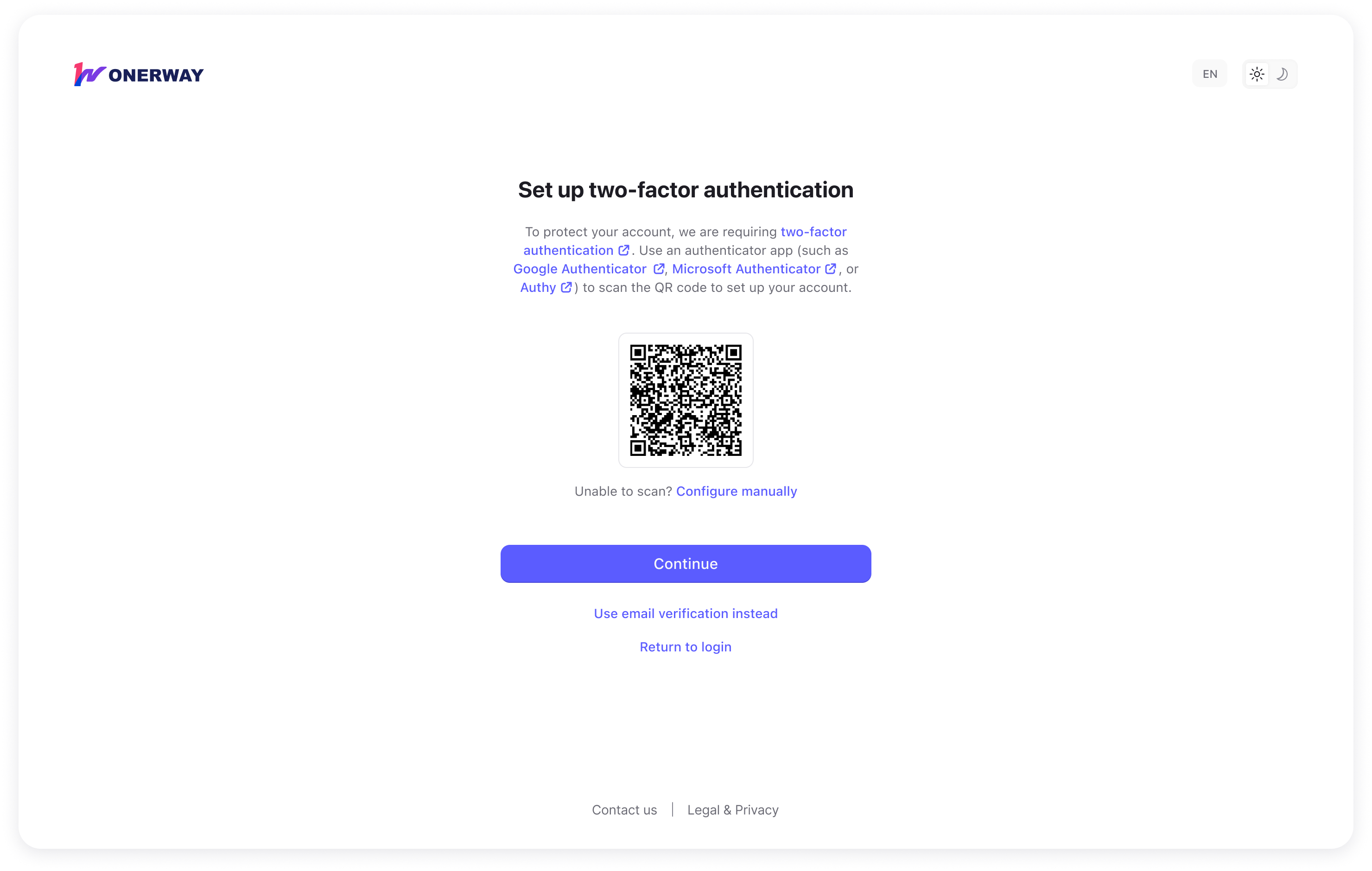
- After entering your password, you will see a Set up two-factor authentication screen.
- You will be prompted to set up an Authenticator App first by default.
- If you prefer to use your email, click the Use email verification instead link at the bottom.
Voluntary Setup (From Your Profile)
If 2FA isn't mandatory yet, we still highly recommend enabling it manually.
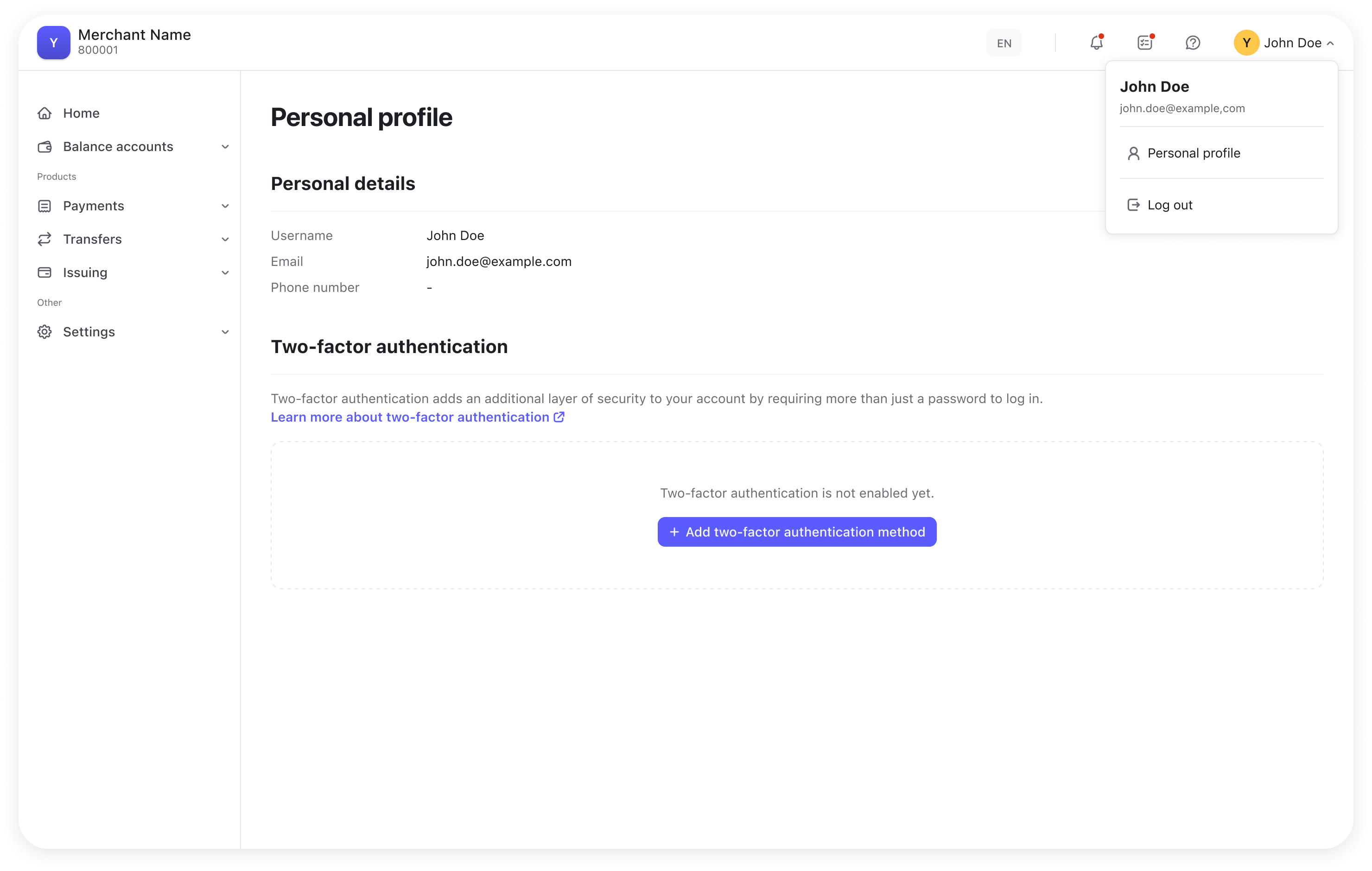
- Click your username in the top-right corner and select Personal profile from the dropdown menu.
- Click Add two-factor authentication method to begin the configuration.
Completing the Configuration
Regardless of the entry point, the steps to link your device are the same.
For Authenticator Apps
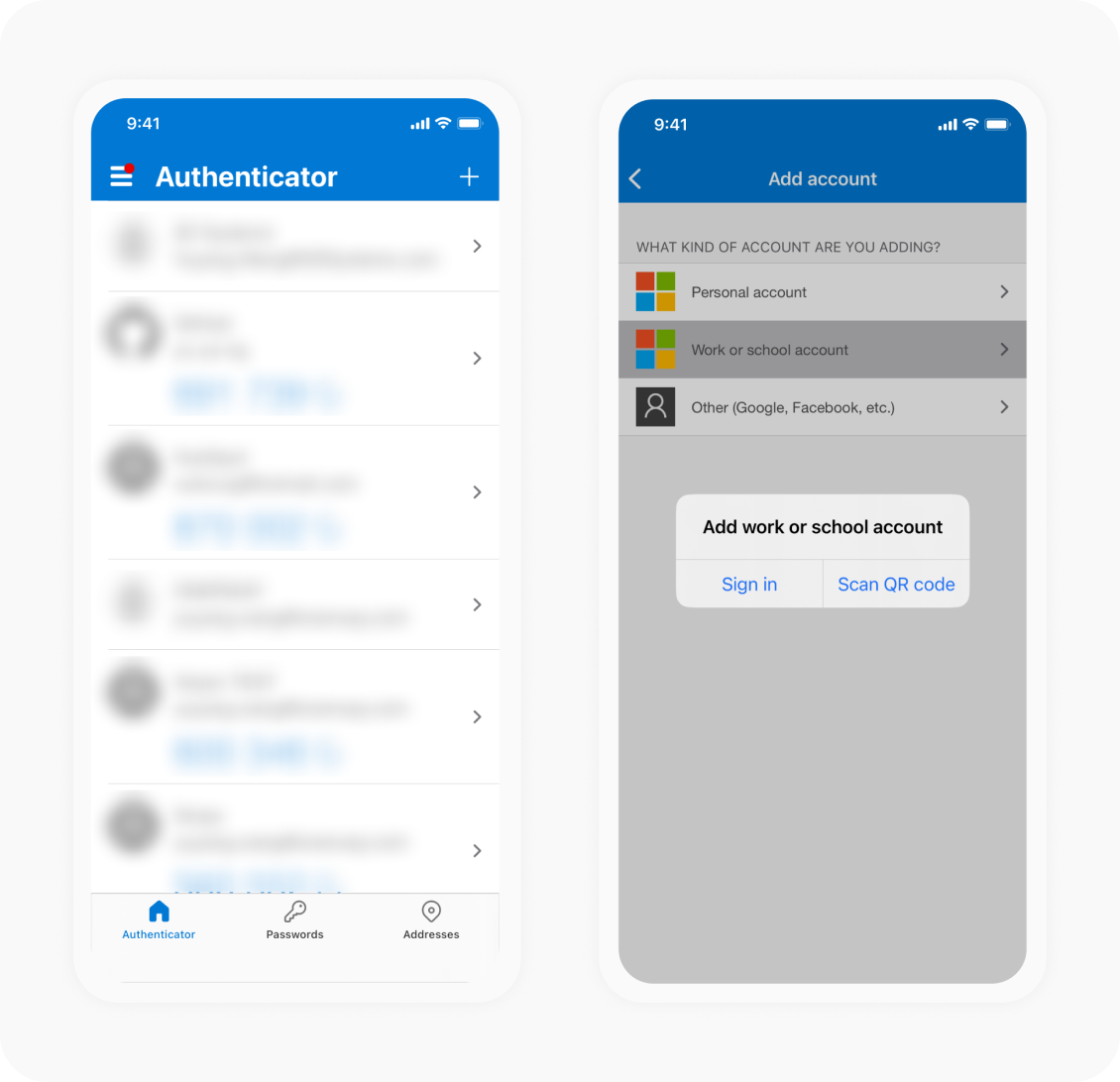
- Open your chosen app and select Add Account or the + icon.
- Scan the QR code displayed on your screen.
- Enter the 6-digit code currently displayed in your app into the verification box.
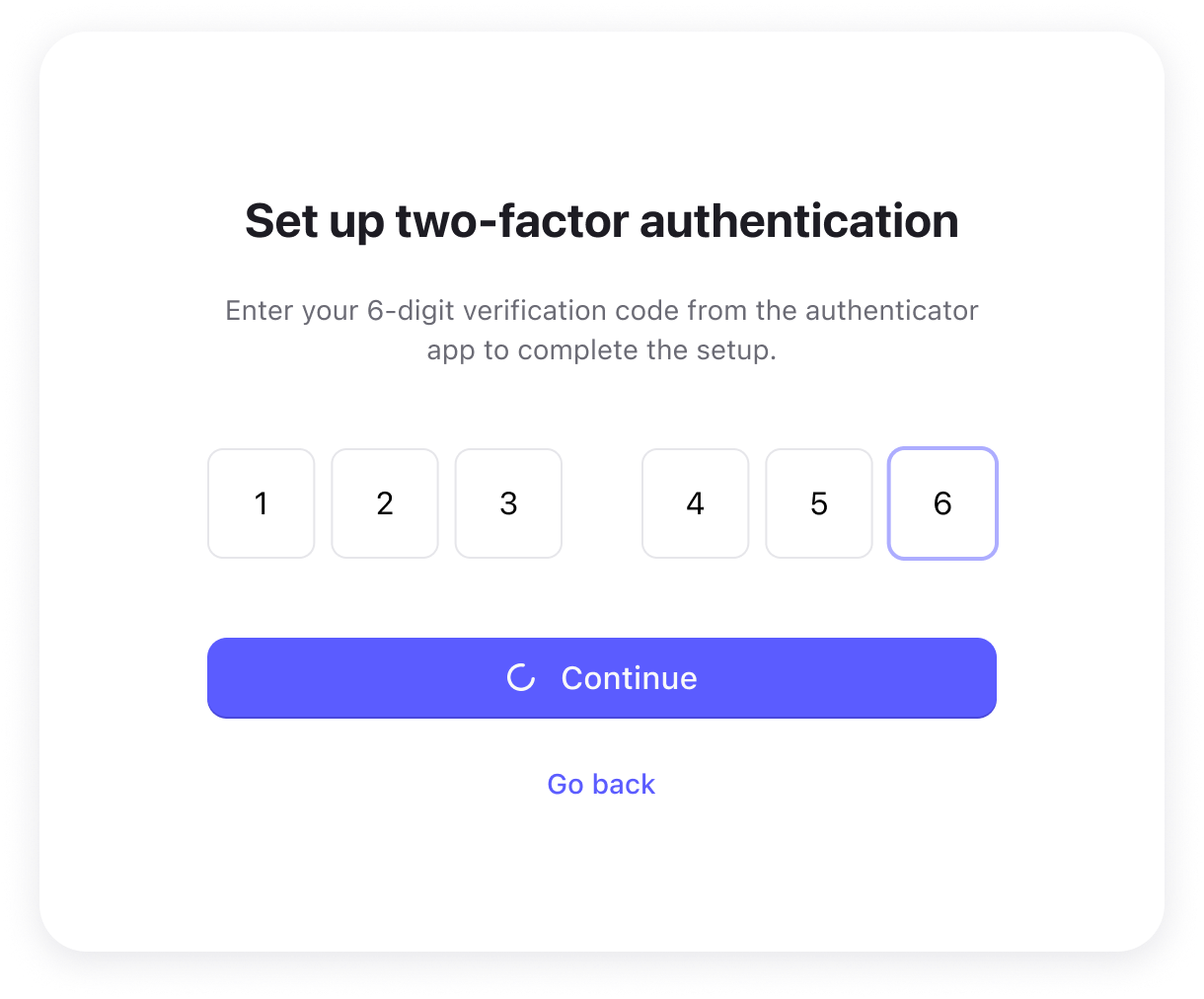
- Click Continue to complete setup.
For Email Verification (OTP)
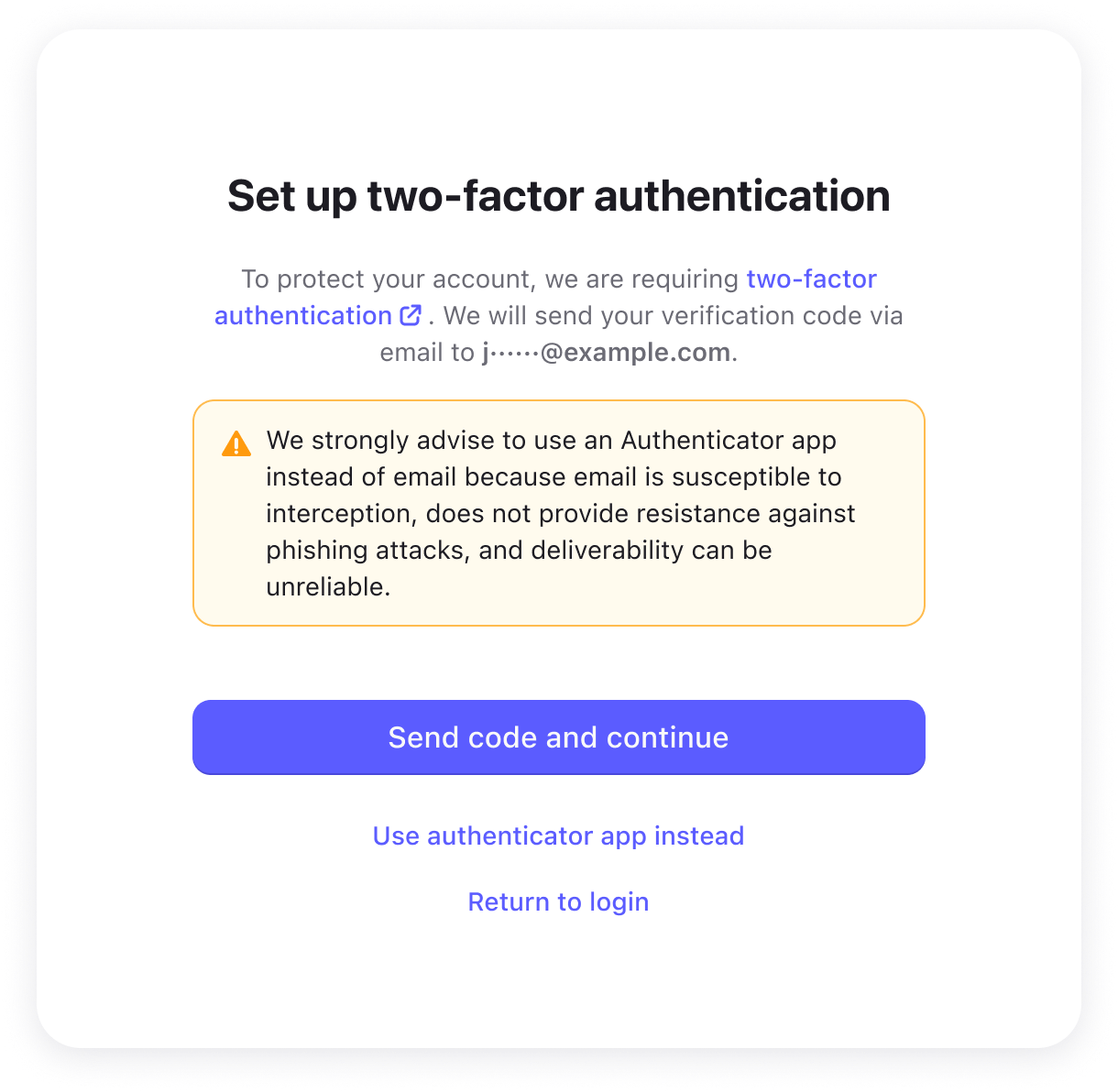
- Click Send verification code to trigger an email to your registered address.
- Copy the 6-digit code from the email.
- Enter the code on the setup screen and click Continue.
Recovery Codes
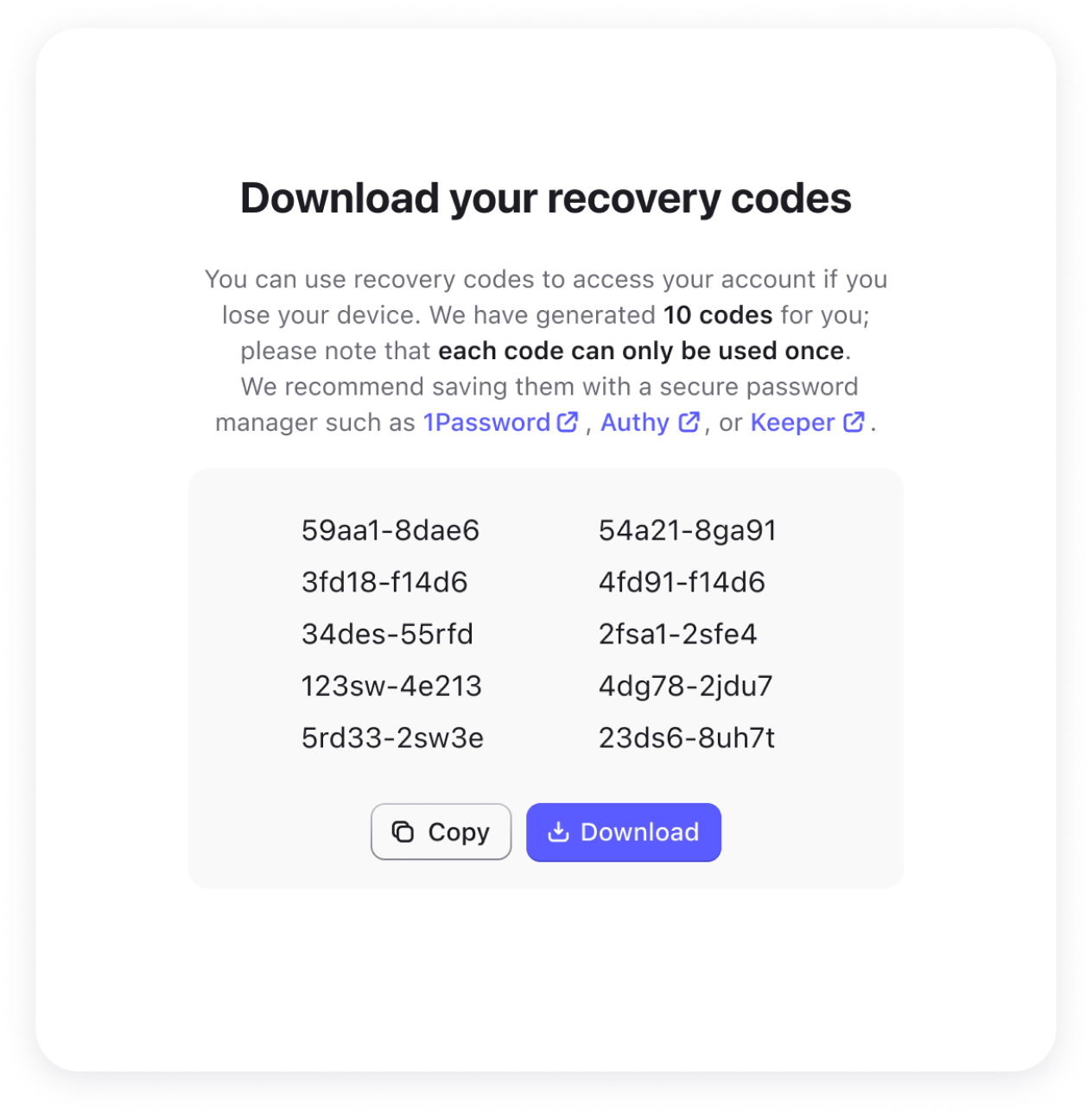
If you choose the Authenticator App as your 2FA method, you will be issued a set of unique Recovery Codes immediately after setup. Think of these as your digital spare keys.
Why Recovery Codes Are Essential
If you lose your phone, delete your authenticator app, or your device breaks, you will be locked out of your account. These one-time-use codes allow you to bypass the 2FA prompt and regain access so you can reset your security settings.
- Single-use only — Each recovery code can only be used once. Once used, it becomes invalid.
- Store them safely — Download or print these codes and keep them in a secure physical location or a password manager.
- Keep them private — Anyone with these codes can access your account. Never share them with anyone, including our support team.
A Note on Email Verification
If you use Email Verification as your method, you will not receive recovery codes.
Since your second factor is your email inbox, as long as you have access to your work email, you can always receive a new login code. If you lose access to your email, contact your Merchant Admin to help reset your account access.
Managing Your 2FA Settings
Once 2FA is active, you can update your preferences at any time from your Personal profile.
Set a Primary Method
If you have configured both an Authenticator App and Email Verification, you can choose which one appears by default when you log in.
How to change: Click Set as default next to your preferred method.
Regenerate Recovery Codes
If you have used several of your single-use recovery codes, or suspect your current list has been exposed, generate a new set.
Remove a 2FA Method
If you get a new phone or want to switch methods:
- Click Remove next to an existing method.
- Complete the identity check to confirm.
Logging In with 2FA
Once 2FA is enabled, your login process changes slightly:
- Log in with your email and password as usual.
- When prompted, open your app or check your email for the 6-digit code.
- Enter the code and you are securely logged in.
FAQ
Q: What if I lose my phone and my recovery codes?
A: Contact your Merchant Admin. They can reset your 2FA from the Team and Security page, allowing you to log in with just your password and start a fresh setup.
Q: Can I use both an Authenticator App and Email Verification at the same time?
A: Yes. You can configure both methods and set one as the default. The other acts as a backup.
Q: Will I need to enter a 2FA code every time I log in?
A: Yes, every login session requires a 2FA code once it is enabled on your account.
Getting Account Info and API Integration
Learn how to retrieve your merchant credentials and choose the right integration method for your business needs after account approval.
Managing Team Security
Learn how administrators can enforce two-factor authentication policies, monitor adoption, and assist locked-out users in the Merchant Portal.