Manage refunds
Use the Merchant Portal to initiate refunds for original transactions with a Successful payment status and track their processing results. The Refunds page is a tracking and query surface; it does not initiate refunds directly.
Choose a refund entry point
Choose the entry point that matches how your business accepts orders.
| Scenario | Entry point |
|---|---|
| A single manual refund | In Transaction details, click the ··· menu and select Refund. |
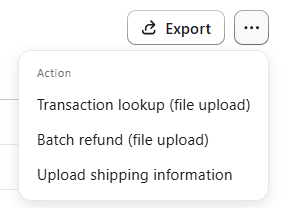
| Several manual refunds | In the Transactions list, click the ··· menu, select Batch refund, and download the template. |
| A store integrated with a third-party ecommerce platform | Initiate the refund in the store backend. The refund request syncs to Onerway; do not repeat it in the Merchant Portal. |
| An automated or self-built integration | Call the Refund APIPayments API. |
Initiate a refund in the Merchant Portal
For a single refund, locate the original transaction in Transaction details, click the ··· menu, select Refund, enter the refund information, and select Confirm refund.
- Enter numbers only. The refund amount cannot exceed the original transaction amount.
- KRW and JPY refunds do not support decimal amounts.
- The refund currency defaults to the order currency.
- The refund reason is optional: Negotiated refund, Duplicate purchase, or Other. For Other, provide a reason of up to 100 characters.
The refund source is recorded as Merchant Portal (MERCHANT). The optional refund reason can support later reconciliation and analysis.
Submit a batch refund
In the upper-right corner of the Transactions list, click the ··· menu and select Batch refund to download the template. Fill in the Merchant order ID or Transaction ID, refund amount, and optional refund reason, then upload and submit the file.
- Do not use a pre-authorization ID, card-binding ID, or subscription contract ID in the template.
- Check the result in File Center > Upload center.
- Download the error report for rows that fail.
- After submission, track each order in Refunds.
Track refund status
Use Refunds to view progress, search by Refund ID, Original merchant order ID, or Merchant order ID, and filter by status, time, payment method, application, or buyer email. A single time-range query supports up to 90 days. Refund data can also be exported.
| Status | What it means and what to do |
|---|---|
| Pending review | The request awaits platform review, typically within 8 hours of submission. |
| Review rejected | The request did not pass review. Contact support for the specific reason. |
| Refunded | The refund is complete and funds have been returned to the issuing bank under the applicable rules. |
| Processing | The request has been submitted to the bank. A final result typically returns within 1–2 days. |
| Failed | View the failure reason in Refund details. A failed refund does not deduct merchant funds, but it consumes the order's refundable quota. Contact support before attempting another refund because some failures do not support or recommend retrying. |
| Cancelled | A merchant can cancel a request in Pending review. If a new request after a failure reports insufficient balance, contact support to cancel the failed refund before trying again. |
Resolve refund errors
For a failed batch row, download the error report from Upload center and use the reported reason to investigate.
If a Refund API request returns an error and no corresponding refund order appears in the Merchant Portal, first review the error returned by the API. If it does not identify the cause, contact support for assistance.
View refund details
Open a refund from the list by selecting Action > View details, or select any information area in that refund row. The details page includes refund information (such as Refund ARN, review time, source, and reason), original transaction information, and customer information. Use it to verify refund progress and respond to customer enquiries.
Subscriptions
Set up recurring billing to collect payments automatically on a schedule—perfect for SaaS, memberships, and content subscriptions.
Strong Customer Authentication (SCA)
A European regulatory requirement introduced by PSD2 to reduce fraud and make online and contactless offline payments more secure